This is a step-by-step guide to setting up an E8-WiFi Plus in Xlights.
It is required that Xlights version 2023.14 or later is used.
Step 1: Open Xlights and go to Controllers
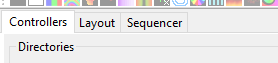
Launch Xlights and navigate to the “Controllers” tab.
Step 2: Add Ethernet Controller
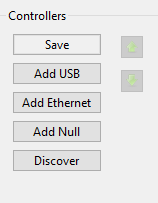
Go to ‘Controllers > Add Ethernet’.
Step 3: Select Vendor and Model
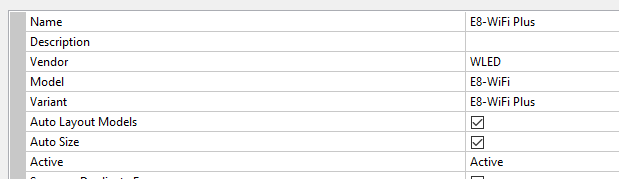
In the dialog window that opens, select ‘Vendor > WLED > E8-WiFi > E8-WiFi Plus’.
Step 4: Configure the controller
Enter the IP address of the device and set the protocol to DDP.